<?xml version="1.0" encoding="utf-8"?><feed xmlns="http://www.w3.org/2005/Atom" ><generator uri="https://jekyllrb.com/" version="3.10.0">Jekyll</generator><link href="https://www.wesbland.com/feed.xml" rel="self" type="application/atom+xml" /><link href="https://www.wesbland.com/" rel="alternate" type="text/html" /><updated>2026-02-23T20:59:57+00:00</updated><id>https://www.wesbland.com/feed.xml</id><title type="html">Wesley’s Blog/CV/Site</title><subtitle>Place for all Wesley&apos;s web stuff</subtitle><entry><title type="html">Introduction to Git</title><link href="https://www.wesbland.com/blog/intro-to-git/" rel="alternate" type="text/html" title="Introduction to Git" /><published>2017-10-31T00:00:00+00:00</published><updated>2017-10-31T00:00:00+00:00</updated><id>https://www.wesbland.com/blog/intro-to-git</id><content type="html" xml:base="https://www.wesbland.com/blog/intro-to-git/"><![CDATA[<p>Let’s get one thing straight before I start this thing. Git is not the same
thing as GitHub. Git is a program that runs on your computer that creates a
repository where files can be safely stored and versioned. GitHub is a company
that runs a service online where you can place copies of your Git repositories
so if your computer falls in a lake, your files will still be safe. Don’t get me
wrong. I love GitHub. Here’s a picture of my laptop.</p>

<p><img src="/images/laptop_back.jpg" alt="My Octocat Laptop" /></p>

<p>I plan to write a post about GitHub at some point in the future, but this isn’t
it. This is about Git itself.</p>

<p>I’m going to start by saying that if you’re looking for a really good tutorial
about how to get started with Git, I’d recommend
<a href="https://try.github.io/levels/1/challenges/1">this</a> one from GitHub. It doesn’t
get into any details or the philosophy of Git, which is what I hope to touch
more on here, but it does a great job of being a hands-on tutorial to get you
started with some basic Git usage.</p>

<h2 id="why-is-this-so-hard">Why is this so hard?!?</h2>

<p>You’ve probably heard of Git before. You may have even tried it out. Shortly
after doing so, you probably said…</p>

<blockquote>
  <p>“Arg! Why would anyone use this?!? It’s so complicated and stupid!”</p>
</blockquote>

<p>This is normal. Especially if you’ve come from one of the more traditional
version control systems where things were pretty straightforward. There was
none of this <em>distributed</em> nonsense and when you wanted to commit stuff, you
just said <code class="language-plaintext highlighter-rouge">commit</code>.</p>

<p>Git is different. If you’re coming from previous version control systems, you
are probably familiar with the idea that there is a golden master repository
somewhere that has the magical canonical version of your code. This made things
nice and simple. When you wanted to get the most recent version of the code, you
went to that repository. If you wanted to see the side development that was
going on, it was probably also in that repository.</p>

<p>The downside was that if you ever wanted to try something out without sharing it
with the world…too bad.  Either you put it in a branch on that repository for
all to see, or you didn’t put it version control at all and hoped that nothing
happened to your laptop for as long as it took you to finish that feature. You
also couldn’t go back and fix any if your previous work if you discovered a bug
in a commit in your side branch and wanted to clean it up before you merged the
branch in with the main branch. Also, if you were somewhere without an Internet
connection…too bad. No checkins for you.</p>

<p>Also, if you’ve talked to someone who knew Git well to ask for help, they
probably said something like this:</p>

<blockquote>
  <p>It’s really easy once you think of it as a directed acyclic graph!</p>
</blockquote>

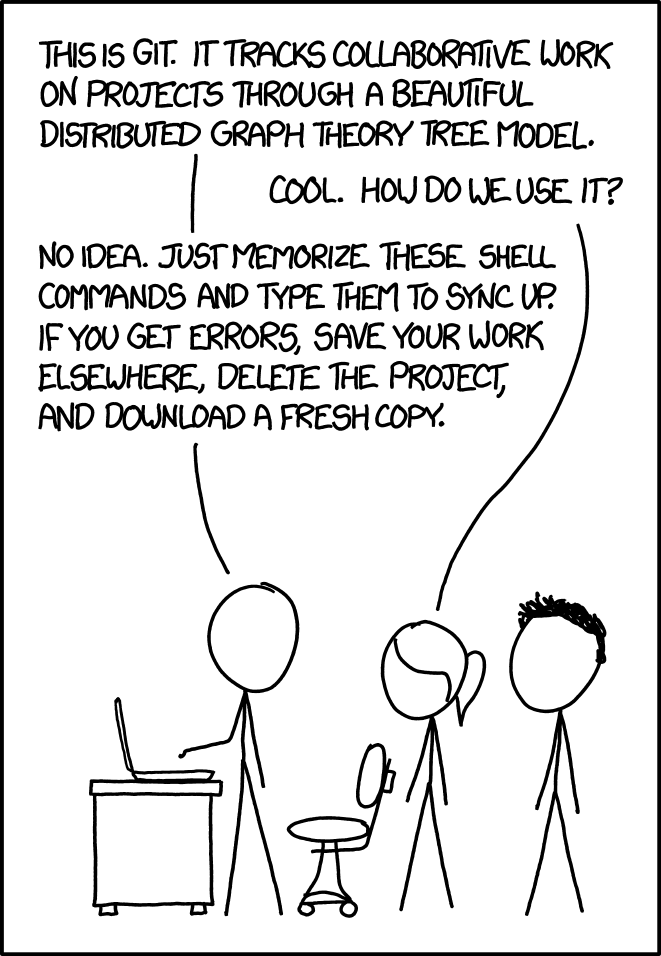
<p>I’m going to leave that one for next time, but the short version is, yes, that’s true…for a small number of people.</p>

<p><img src="/images/git_2x.png" alt="XKCD 1597" class="center-image" height="50%" width="50%" />
<em class="center">Source: <a href="https://xkcd.com/1597">https://xkcd.com/1597</a></em></p>

<p>I could go on all day about all of the things that you couldn’t do, but you came
here to find out about what you <em>can</em> do with Git. So let’s move on to that.</p>

<h2 id="set-up-your-gitconfig">Set up your <code class="language-plaintext highlighter-rouge">.gitconfig</code></h2>

<p>Before we start, let’s make sure we’re all on the same page configuration-wise.
The very first thing you should do after you install Git on your machine is set
up the basics of your <code class="language-plaintext highlighter-rouge">.gitconfig</code> file in your home directory. Your’s doesn’t
have to be as
<a href="https://github.com/wesbland/environment/blob/master/gitconfig">long</a> as mine,
but there are some critical things that you should have.</p>

<div class="language-plaintext highlighter-rouge"><div class="highlight"><pre class="highlight"><code>[user]
    name = &lt;Your name here&gt;
    email = &lt;Your email here&gt;
</code></pre></div></div>

<p>The first thing you need is to set up your name and email. It seems silly, but a
lot of people leave this part out. Git doesn’t have usernames the way other
version controls systems do. For instance, in Subversion, you would set up your
username for a particular repository and the server would figure out your name
and email on the other end. With Git, you take care of all of that on your end.
Keep in mind that this <code class="language-plaintext highlighter-rouge">.gitconfig</code> file in your home directory is just the
default for all of your local repositories. You can always customize this if you
have some repositories where you want to go by one name (Wesley Bland), and
others where you want to use another (Stormcloak Dragonslayer). The important
thing is that you don’t leave this blank, because then you’re just whatever your
username is and your email is (<code class="language-plaintext highlighter-rouge">username@hostname</code>), which is gross and
unhelpful.</p>

<p>There’s lots of other configuration you can put in there. There’s one thing that
I recommend strongly and will assume that you’re using here:</p>

<div class="language-plaintext highlighter-rouge"><div class="highlight"><pre class="highlight"><code>[alias]
    graph = log --graph --decorate --abbrev-commit --pretty=oneline
</code></pre></div></div>

<p>I always see people using <code class="language-plaintext highlighter-rouge">git log</code> as their main way of looking at history in
their repository. This is gross. It’s the difference between this:</p>

<div class="language-plaintext highlighter-rouge"><div class="highlight"><pre class="highlight"><code>commit eb68396c3d5054f2f5b4a2f920dd7500b370df22
Merge: f1848ff00780 9c4170c8ffdf
Author: xxxxxx
Date:   Thu Jun 1 13:09:33 2017 -0700

    Merge pull request #3016 from jdinan/pr/man2pdf

    Add script to convert libfabric manpages into a PDF

commit f1848ff007807bfc723bf7b694b7df8f3b95dd1c
Merge: 58b96d73eb65 5b00c0407503
Author: xxxxxx
Date:   Wed May 31 14:01:17 2017 -0700

    Merge pull request #3021 from qwert182/win-fix-dgram

    win/build: fix recvmsg

commit 5b00c040750354148828b2a314e15216b2ae1bf8
Author: xxxxxx
Date:   Wed May 31 19:44:41 2017 +0300

    win/build: fix recvmsg

    - actual length of message is the result of recvfrom(), not len
    - copy result from buffer[offset] instead of buffer[len]

    Note: recvmsg was not used till commit c0548ae8014907d4a5be13678bc5e6ebf3115410

    Signed-off-by: xxxxxx
</code></pre></div></div>

<p>And this:</p>

<div class="language-plaintext highlighter-rouge"><div class="highlight"><pre class="highlight"><code>*   eb68396c3d50 (HEAD -&gt; master, origin/master, origin/HEAD) Merge pull request #3016 from jdinan/pr/man2pdf
|\
| * 9c4170c8ffdf Automatically generate man2pdf manpages list
| * e9f4f26ece50 Add script to convert libfabric manpages into a PDF
* |   f1848ff00780 Merge pull request #3021 from qwert182/win-fix-dgram
|\ \
| * | 5b00c0407503 win/build: fix recvmsg
|/ /
* | 58b96d73eb65 Updated nroff-generated man pages
* |   de82f986952d Merge pull request #3020 from shefty/fixes
|\ \
| * | 7d6c53c38dda fabric: Update triggered op definitions in response to FI_CONTEXT2
* | |   6b2a3c204174 Merge pull request #3002 from thananon/pr/usnic_auth_key
|\ \ \
| * | | 9860cbdaddb1 prov/usnic: handle authorization key
* | | |   45465f4f2116 Merge pull request #2992 from thananon/pr/usnic_mode_v2
|\ \ \ \
| |_|_|/
|/| | |
| * | | fd83751f92af prov/usnic: correctly accommodate new mr_mode flag.
* | | |   ff14da944c66 Merge pull request #3014 from pkcoff/BGQ-Provider-copy-immediate-data-for-FI_PEEK
|\ \ \ \
| * | | | 4cc4b6411504 prov/bgq: Copy immediate_data into context on match for FI_PEEK
* | | | |   a63760b3d4e6 Merge pull request #3013 from j-xiong/master
|\ \ \ \ \
| * | | | | c7879a2044bb prov/psm2: Handle FI_DISCARD in tagged receive functions
* | | | | |   74493175723a Merge pull request #3011 from hppritcha/upstream_merge_pr1349
</code></pre></div></div>

<p>I know that second one can look a little intimidating, but I hope you’ll see as
we go along how much more useful it actually is (also how much more information
you can see at once).</p>

<h2 id="what-does-distributed-mean">What does distributed mean?</h2>

<p>One of the taglines of Git is that it’s “distributed”. It’s usually described as
a <em>distributed</em> version control system. This is something that confuses people,
especially if they came from the world of Subversion or something like it, that
has a single version of the repository that is the “main” version where everyone
else checks out their code. People hear about the distributed model and think
that it’s the wild west and that it’s impossible to find the “real” version of
the code anywhere.</p>

<p>I want to make some things pretty clear here. Yes, that model is possible. You
<em>can</em> have a million different versions of your repository that are all the
<em>right</em> version. In practice, that would be anarchy and stupid. The way that
every project usually works is that they decide on where the “main” version of
the repository will be (often at a cloud-based service like
<a href="github.com">github.com</a>, but not necessarily) and treat that as the blessed
version.</p>

<p>That’s not to say that the idea of being distributed has no merit though. In
fact, it’s incredibly useful. For instance, I started this post on an airplane.
With a single-server model, that would mean that I couldn’t check the status of
my repository, make any commits, or really anything else but the most basic
repository operations. However, because I’m using Git, I actually have a
completely re-creatable copy of the repository on my laptop and can do anything
with the repository that I’d normally do. Later, when I get back to an Internet
connection, I can push my changes back to the main repository and everything is
in sync again.</p>

<h2 id="wrap-it-up">Wrap it up</h2>

<p>I started out writing my Git tutorial as one huge post, but it <del>quickly</del>
slowly became clear that it was going to be much bigger than anyone had interest
in waiting around for. So I’ve now broken this post up into more digestible
chunks. This time I covered some of the overall philosophy of Git and helped you
set up your environment. Next time I want to show you how to do some of the
basics of using a repository (cloning, pushing, fetching other’s changes, etc.).
Later, we’ll get into some of the more complex workflows that come from having a
repository on GitHub or contributing to others’ repositories.</p>]]></content><author><name></name></author><category term="blog" /><category term="tools" /><category term="git" /><summary type="html"><![CDATA[You have to put your code somewhere. This is the best place to do it.]]></summary></entry><entry><title type="html">Tools of a Developer</title><link href="https://www.wesbland.com/blog/development-tools/" rel="alternate" type="text/html" title="Tools of a Developer" /><published>2017-04-17T00:00:00+00:00</published><updated>2017-04-17T00:00:00+00:00</updated><id>https://www.wesbland.com/blog/development-tools</id><content type="html" xml:base="https://www.wesbland.com/blog/development-tools/"><![CDATA[<p>One thing I’m always on the lookout for when someone opens up their laptop in
front of me is what are the tools they use. This could be anything from their
mail client to their terminal emulator. I check their operating system version.
I look at all the icons on their screen and the windows that are open. I don’t
do this to be a creep. I do it because I want to know the latest and
greatest tools people use and see if it’s better than what I’m using at that
moment.</p>

<p>So in that vain, here’s what I’m using at the moment. This is likely to change
(frequently) because of what I just said above, but I think it’s always a useful
snapshot to keep track of these things. I’ll probably write more detailed posts
about a lot of them later.</p>

<h3 id="hardware">Hardware</h3>

<ul>
  <li><a href="https://support.apple.com/kb/sp715?locale=en_US">Early 2015 MacBook Pro 13” Retina</a>
    <ul>
      <li>I’ve been using a Mac since I started grad school and I’ve never looked back.
When I was an undergrad with nothing but time, I had a Linux box as my main
development workstation, but at some point I got tired of doing more system
administration than software development and gave a Mac a try. Ever since,
Apple has done a great job of making new hardware (albeit sometimes pricy)
and I’ll keep buying it as far out as I can see. Windows has never been an
option for me as I can’t develop most of the software I work on directly on
the machine so I’d always either have to be in a VM or an SSH session.</li>
    </ul>
  </li>
  <li><a href="https://codekeyboards.com/">Code Keyboard</a>
    <ul>
      <li>After reading for years about how great mechanical keyboards are, I finally
gave this keyboard a shot. I won’t say that it’s changing my life. I didn’t
get the one with the super clacky keys so my co-workers wouldn’t throw things
at me, but I can’t really tell a massive difference between this and a regular
old rubber dome keyboard. I’d still like to try out the new Apple keyboards
with the butterfly springs, but it’s hard to justify buying another new one.</li>
    </ul>
  </li>
  <li><a href="https://www.apple.com/shop/product/MJ2R2LL/A/magic-trackpad-2">Magic Trackpad 2</a>
    <ul>
      <li>I love thing thing. It’s got lots of nice gesture shortcuts that work well
with the Mac (for things like starting Expose or Mission Control or whatever
it’s called now). 3-finger dragging is a must for quick selection. It also
doesn’t cramp up your hand the way a mouse can. I won’t be doing any gaming
on this thing, but I have a real mouse for that at home.</li>
    </ul>
  </li>
  <li><a href="https://www.amazon.com/gp/product/B0013CEY0Q">Fellowes Memory Foam Wrist Rest</a>
    <ul>
      <li>If you’re going to use a keyboard, you need a place to put your wrists. I
picked this one up on Amazon because it was the right size and it was cheap.
No complaints.</li>
    </ul>
  </li>
  <li>BenQ GW2765 27” Monitor
    <ul>
      <li>I didn’t really get to pick my monitor at work. I had the option of two low-res
Dell monitors or this higher resolution one. I picked this one because I’ve
never really gotten my workflow to do well with two monitors. I have the one
big monitor in the center of my desk and the laptop to the side for extra
windows that I can push over there (documentation, etc.).</li>
    </ul>
  </li>
  <li>Laptop holder from bathroom stall as laptop stand
    <ul>
      <li>This was literally a curved piece of metal sitting in a closet somewhere.
Turns out it’s hung on the back of bathroom stalls for people to put their
laptops in while using the bathroom. Here’s hoping this one wasn’t in there
long.</li>
    </ul>
  </li>
  <li><a href="http://a.co/2jMNcX9">Plantronics Backbeat PRO Bluetooth Headphones</a>
    <ul>
      <li>I don’t have great things to say about these. I love the fact that they’re
bluetooth so I stop accidentally pulling the wires out of the headphones
and/or the computer. However, there’s an awful lot of interference that
results in a clicking/skipping sound when listening to music. At some point,
I might try using some Bose QC 35’s to see if they have the same problem.</li>
    </ul>
  </li>
  <li>Pen and notebook
    <ul>
      <li>I take notes. This is where they go. I’ve tried lots of digital note-taking
apps, but on the iPad, the writing fidelity is horrible. When typing, I often
can’t keep up with what’s going on or I get distracted. The downside is that
I have to carry a physical thing around though.</li>
    </ul>
  </li>
  <li><a href="https://www.amazon.com/dp/B00006B8J2">Fellowes Monitor Stand</a>
    <ul>
      <li>I’m pretty tall so having something to get my monitor up to the right height
is important. They had a bunch of these sitting around at work and it does
the job. To be fair though, if these weren’t around, I would have just used
a stack of books or something.</li>
    </ul>
  </li>
</ul>

<h3 id="communication">Communication</h3>

<ul>
  <li>Mail
    <ul>
      <li>Mail.app
        <ul>
          <li>I’ve gone back and forth with just about every mail client for Mac. In the
end, the reason I keep ending up back with the stock app is mostly the
fault of where I work. It’s hard for me to use the non-stock mail app on
my phone which means I lose a lot of the benefit of the kinds of apps that
let you “snooze” emails. I’d love to have that ability, but until I can
get it everywhere, it’s not as useful.</li>
        </ul>
      </li>
      <li><a href="https://products.office.com/en-us/outlook/email-and-calendar-software-microsoft-outlook">Outlook for Mac</a>
        <ul>
          <li>From time to time, I have to fire up Outlook for work. Usually because I
want to schedule a meeting and need to be able to best integrate with the
Exchange server. I don’t use this as a daily driver.</li>
        </ul>
      </li>
    </ul>
  </li>
  <li>Calendar
    <ul>
      <li>Calendar.app
        <ul>
          <li>I’ve tried a few different alternatives here too, but end up going back to
the default calendar app because I keep using the default mail app. It’s
very nice to have a mail and calendar app that work together well.</li>
        </ul>
      </li>
    </ul>
  </li>
  <li>Instant Messaging
    <ul>
      <li><a href="www.slack.com">Slack</a>
        <ul>
          <li>Depending on who I need to talk to, I have to use different chat
clients/servers. In the end though, this is my favorite. It’s available
everywhere. The clients do a good job of exposing features. Notifications
are good. Lots of integrations. It pretty much does it all.</li>
        </ul>
      </li>
      <li><a href="https://rocket.chat/">Rocket.Chat</a>
        <ul>
          <li>Rocket.Chat isn’t too bad. It’s a poor man’s Slack. The reason I use it is
because we need to have a self-hosted chat client for work and this is
pretty much all there is. Our install is somewhat crippled due to firewall
restrictions or I might like it better.</li>
        </ul>
      </li>
      <li>Messages.app
        <ul>
          <li>This is pretty much just used for texting. If you use iMessages, you use
this.</li>
        </ul>
      </li>
      <li><a href="https://www.skype.com/en/business/skype-for-business/">Skype for Business</a>
        <ul>
          <li>This is my least favorite. I have to use it because of work, but I get out
of it as much as possible. It is still not feature complete (compared to
the Lync client that it replaced) even after a 1.0 release. It drops
connections from time to time. It’s a <strong>huge</strong> battery hog. It has
terrible syncing between the desktop and mobile clients. This is a last
resort.</li>
        </ul>
      </li>
    </ul>
  </li>
</ul>

<h3 id="music">Music</h3>

<ul>
  <li><a href="https://www.spotify.com/us/">Spotify (Paid)</a>
    <ul>
      <li>I’ve tried Amazon Music and Apple Music and I keep coming back to Spotify.
For me, the differentiator is the curated playlist selection. I like to
listen to music while at work and I don’t want to spend a bunch of time
picking the next song. Apple and Amazon’s playlists are too short and I have
to pick a new playlist every hour or two. Pandora requires that I know more
about what I want to listen to before I start (need to “seed” my playlists
well). I like that Spotify has lots of ambient lists that I can trust to not
get in my way while I’m trying to work.</li>
    </ul>
  </li>
</ul>

<h3 id="browser">Browser</h3>

<ul>
  <li><a href="https://www.google.com/chrome/">Chrome</a>
    <ul>
      <li>I recently built a Windows PC at home so I decided to switch back to Chrome
to have a cross-platform browser. I like that Safari is more integrated with
the OS, but I’ve also found that Chrome tends to work with more websites,
especially those that are said to be “IE-only” at work.</li>
    </ul>
  </li>
</ul>

<h3 id="command-line">Command Line</h3>

<ul>
  <li><a href="https://neovim.io/">Neovim</a>
    <ul>
      <li>I’m a Vim diehard. Mostly because I never learned Emacs. It’s not that I
have a good argument why Vim is better. I’m just lazy. That being said, I
did switch over hardcore to Neovim. The big winner here over regular Vim is
asynchronous background threads for plugins. I use tons of plugins (probably
discuss that in a different post) and some of them, like linters are pretty
painful if they block the main thread. Imagine typing and your linter kicks
in for 2 seconds. You can’t get any response from the UI until it’s done
compiling. That’s not ok. Don’t be that guy. Use Neovim.</li>
    </ul>
  </li>
  <li><a href="https://www.iterm2.com/">iTerm2</a>
    <ul>
      <li>This is a big improvement over the default Terminal app in MacOS. I’ll admit
that it’s been a long time since I”ve use the default app, but at least when I
switched, iTerm2 had much better handling of splits and windows. Since then,
the killer feature has been built-in support for remote tmux sessions. I can
now create and manipulate my splits and windows seamlessly. It’s awesome.</li>
    </ul>
  </li>
  <li><a href="https://tmux.github.io/">tmux</a>
    <ul>
      <li>In my last job, I was able to use mosh. It was awesome. I loved it. My
sessions just never died. I’d lose a connection. Go home. Get on a plane.
Doesn’t matter. The ssh connection was always there. Fast forward to my new
job and mosh is no longer an option. Next best thing, I use tmux. Sessions
always stay alive even when I go home for the day. Combined with the
integration with iTerm2, this makes working much easier. I no longer fear
putting my laptop to sleep.</li>
    </ul>
  </li>
  <li><a href="https://www.gnu.org/software/bash/">bash</a>
    <ul>
      <li>I’ve tried a few different shells. In the end, I’ve found them all to be
pretty similar. Fish was pretty cool, but not really supported everywhere
(as in, not installed by default) which meant I had to maintain two different
versions of my environment setup depending on the shell. I gave up on that
and decided to go with the old standby so I wouldn’t have to worry about
where I was.</li>
    </ul>
  </li>
</ul>

<h3 id="utilities">Utilities</h3>

<ul>
  <li><a href="https://www.alfredapp.com/">Alfred 3 (w/ Powerpack)</a>
    <ul>
      <li>This is a great shortcut tool. I use it to search for files on my computer,
launch applications, open ssh connections, remember passwords, do quick
calculations, put my computer to sleep, open system preferences, and
probably a bunch more.</li>
    </ul>
  </li>
  <li><a href="https://github.com/newmarcel/KeepingYouAwake">KeepingYouAwake</a>
    <ul>
      <li>This is a handy little tool to keep your computer from going to sleep. It’s
really nice when presenting or sitting in a meeting where you’re doing
something (like Powerpoint) that wouldn’t otherwise force your computer to
stay awake.</li>
    </ul>
  </li>
  <li><a href="https://www.parallels.com/">Parallels</a>
    <ul>
      <li>I haven’t tried that many virtualization options on the Mac because I’ve
usually had access to Parallels through work and it’s always been a pretty
good solution for me. I work in here very sparingly so I don’t have a lot to
say either way about it.</li>
    </ul>
  </li>
  <li><a href="http://reederapp.com/mac/">Reeder</a>
    <ul>
      <li>I subscribe to a <strong>lot</strong> of different RSS feeds and Reeder (synced via
Feedly) is a great way to track and read all of them. It works with lots of
different services (I use Instapaper for things I don’t read immediately)
and has a pretty good way of displaying articles by default and a good
browser fallback when necessary.</li>
    </ul>
  </li>
  <li><a href="https://www.lastpass.com/">LastPass</a>
    <ul>
      <li>This is a must have at this point as I have way too many passwords to
remember. At one point, we could all just use that one password for everything
but now a combination of security and password requirements make it hard to
continue that model. LastPass does a great job of both creating new passwords
and remembering all of them for you. It will even do an analysis and tell you
where you have a bunch of duplicated passwords and change (many) of them for
you automatically. I also have an Alfred plugin so I can access these things
in any application.</li>
    </ul>
  </li>
</ul>]]></content><author><name></name></author><category term="blog" /><category term="setup" /><category term="tools" /><summary type="html"><![CDATA[These are my tools. Hopefully, they're always improving.]]></summary></entry><entry><title type="html">Introduction to Vim</title><link href="https://www.wesbland.com/blog/intro-to-vim/" rel="alternate" type="text/html" title="Introduction to Vim" /><published>2017-04-17T00:00:00+00:00</published><updated>2017-04-17T00:00:00+00:00</updated><id>https://www.wesbland.com/blog/intro-to-vim</id><content type="html" xml:base="https://www.wesbland.com/blog/intro-to-vim/"><![CDATA[<p>Everyone has their favorite editor. For some, it’s Emacs. For others, it’s Vim.
Still others don’t know how to use a computer. I’m kidding. I’m actually writing
this post in <a href="https://atom.io">Atom</a> (though with Vim keybindings). What editor
you use depends on a bunch of things, but if you want to pick one of the biggest
two, it comes down to Emacs and Vim. Someday I’ll try to get someone to write a
post or two about Emacs, but in my world, it’s all about Vim. Well…actually
<a href="http://neovim.io">Neovim</a>, but I’ll come back to that later.</p>

<p>In this post, I’ll try to cover some of the basics of Vim to get you started and
circle back to some of the more advanced features in a later post. Let’s start
with the thing that is probably the most searched for feature of Vim.</p>

<h2 id="jane-stop-this-crazy-thing"><a href="https://www.youtube.com/watch?v=gTZ91YtKLN4">Jane! Stop this crazy thing!</a></h2>

<div class="language-plaintext highlighter-rouge"><div class="highlight"><pre class="highlight"><code>Esc
:q&lt;enter&gt;
</code></pre></div></div>

<p>The first thing you notice about Vim is that you can’t just hit the escape key
(or Ctrl+C) to quit. You very quickly become familiar with the fact that Vim
lives in modes. When you start it up, you’re probably in “normal mode”. This
means that you’re in the mode where you can give commands to Vim (as opposed to
the one where you input text to the buffer). Most people think that they need to
get into “insert mode” as quickly as possible so they can start typing text. In
reality, I’m probably 50/50 on time spent in the two modes. As soon as I finish
typing the thing I’m thinking, I drop back down out of insert mode into normal
mode. You can generally assume that every command and key that I’m telling you
for the rest of this post applies only to normal mode and won’t do anything in
insert mode.</p>

<p>So lets start with some basic navigation. There’s the very basic keys to move
from character to character:</p>

<div class="language-plaintext highlighter-rouge"><div class="highlight"><pre class="highlight"><code>h - Left
j - Up
k - Down
l - Right
</code></pre></div></div>

<p>Chances are that you probably knew that part though. Those are the basics that
everyone learns. One thing to keep in mind is that you shouldn’t fall back to
the old trap of using those obnoxious keys on the bottom right of your keyboard.
The arrow keys were made for gaming, not typing. Using them just slows you down
massively as you have to move your right hand all the way from the home row to
the arrow keys and back. Stick with <code class="language-plaintext highlighter-rouge">hjkl</code> and you’ll be on your way to
lightning Vim speed.</p>

<p>One thing to keep in mind when flying around your buffers is that all of the
movement keys only work when you’re in normal mode. If you’re in insert mode,
there’s nothing you can do to move around without moving to those pesky arrow
keys. That’s why it’s so important that you train yourself to move down from
insert mode to normal mode. <code class="language-plaintext highlighter-rouge">Esc</code> to go to normal mode. <code class="language-plaintext highlighter-rouge">i</code> to go back to insert
mode (though you’ll find later why I so rarely use the <code class="language-plaintext highlighter-rouge">i</code> key).</p>

<h2 id="time-to-move-faster">Time to move faster</h2>

<p>Now that you can crawl from character to character, it’s time to move a little
faster. What if you want to move forward a whole word at a time instead of just
a character? This is a pretty important one. The <code class="language-plaintext highlighter-rouge">w</code> key is your friend here.
This is one of those rare times where the shortcut key might actually help you
remember what it does. <code class="language-plaintext highlighter-rouge">w</code> for word. You can also you <code class="language-plaintext highlighter-rouge">e</code> to go to the end of
the word. See what I did there? <code class="language-plaintext highlighter-rouge">e</code> for end? Yeah, you saw it. You’re smart. The
word <code class="language-plaintext highlighter-rouge">b</code>efore the current word? You’ll figure it out. Something else to remember
is that “word” has a tricky definition, especially when you’re talking about
code. Vim’s word delimiters change depending on the type of file you’re editing
so you’ll have to experiment a bit, but in general it’s any whitespace or
punctuation mark. Underscores generally don’t count since they usually fall in
the middle of variable names.</p>

<p>So now we can move one word at a time. What if we want to move a bunch of words?
This is where Vim starts to make sense. Just about every command there is in Vim
can be repeated by typing in a number first. For instance, want to move 5
characters down? That’s a <code class="language-plaintext highlighter-rouge">5k</code>. Move back 3 words? <code class="language-plaintext highlighter-rouge">3b</code>.</p>

<p>Now lets try moving up and down by paragraph. That’d be the <code class="language-plaintext highlighter-rouge">{</code> and <code class="language-plaintext highlighter-rouge">}</code> symbols.
They’ll move you to the previous and next empty line, respectively. These are
great. I use them a lot to fly around the code.</p>

<p>You can also page up and down. <code class="language-plaintext highlighter-rouge">Ctrl+u</code> (up) goes up a half page. <code class="language-plaintext highlighter-rouge">Ctrl+d</code>
(down) goes down. <code class="language-plaintext highlighter-rouge">Ctrl+b</code> (back) is up a whole page, and <code class="language-plaintext highlighter-rouge">Ctrl+f</code> (forward)
goes down a whole page.</p>

<p>What do you do if you’ve been moving around so much that your cursor is stuck
way at the bottom of the screen and you want to re-center? <code class="language-plaintext highlighter-rouge">zz</code> (zoom zoom?)
will do the trick there. It centers the screen based on your current cursor
location. You can also put the current cursor at the top <code class="language-plaintext highlighter-rouge">zt</code> (zoom top) or
bottom <code class="language-plaintext highlighter-rouge">zb</code> (zoom bottom).</p>

<p>Sometimes you just want to go to the top of the buffer and <code class="language-plaintext highlighter-rouge">gg</code> will take you
there. <code class="language-plaintext highlighter-rouge">G</code> will also drop you to the end of the file.</p>

<h2 id="ok-now-i-want-to-actually-type-something">OK, now I want to actually type something</h2>

<p>You’ve spent all this time figuring out where you want your cursor to be. It’s
probably time to actually write some code. Push <code class="language-plaintext highlighter-rouge">i</code> (insert) and you’re now in
insert mode just before the highlighted character. Did you actually want to
append? <code class="language-plaintext highlighter-rouge">a</code>. What if you want to put something at the beginning of the line, <code class="language-plaintext highlighter-rouge">I</code>
(super insert), or at the end, <code class="language-plaintext highlighter-rouge">A</code> (super append). How about you’re wanting to
create a new line before the current line? <code class="language-plaintext highlighter-rouge">o</code> (I got nothing). <code class="language-plaintext highlighter-rouge">O</code> (nope) will
insert a new line after the current line.</p>

<p>It may seem silly to have so many ways of going from normal mode to insert mode,
but if you can get to the point where you know all of these shortcut keys by
heart, you can really speed things up when you’re both navigating and typing.</p>

<h2 id="oops-i-made-a-mistake-i-guess-ill-hit-the-old-backspace">Oops, I made a mistake. I guess I’ll hit the old backspace</h2>

<p>You could do that, but I think you’ve learned by now that if it works in
Microsoft Word, it’s probably not the best way to do things in Vim. Of course,
the backspace key will work if you’re in insert mode, but if you’re following my
lead, you’re probably in normal mode by this point. The <code class="language-plaintext highlighter-rouge">x</code> key is the starting
point for character destruction. It will delete the character currently
highlighted. But of course, you probably want to delete more than that. You
might was to delete a word. This is where learning all those navigation keys
above will start to pay off. Let’s see if you can guess what these things do.</p>

<div class="language-plaintext highlighter-rouge"><div class="highlight"><pre class="highlight"><code>dw
d}
dG
dj
</code></pre></div></div>

<p>If you guess delete the next word, delete everything until the next whitespace,
delete everything until the end of the file, and delete this line and the next
line, then you’re probably cheating and didn’t need to be reading this tutorial
anyway. Move along.</p>

<p>There’s a few more that you should know. <code class="language-plaintext highlighter-rouge">dd</code> will delete the entire current
line. <code class="language-plaintext highlighter-rouge">D</code> will delete the rest of the line. <code class="language-plaintext highlighter-rouge">4x</code> will delete 4 characters.</p>

<h2 id="thats-cool-i-can-delewaitwhat-just-happened-when-i-bumped-the-p-button">That’s cool. I can dele…wait…what just happened when I bumped the <code class="language-plaintext highlighter-rouge">p</code> button?!?</h2>

<p>Ah, so you’re learning to paste. That’s good. But when did you cut? Well, in
Vim, every time you delete text, you’re actually cutting it. So if you delete a
character with <code class="language-plaintext highlighter-rouge">x</code>, you can push <code class="language-plaintext highlighter-rouge">p</code> later and past it after the currently
highlighted character. <code class="language-plaintext highlighter-rouge">P</code> will put it before. This works with anything that you
delete. A word, line, paragraph, entire file? No problem. Just <code class="language-plaintext highlighter-rouge">p</code> it in place.</p>

<h2 id="all-thats-good-but-i-dont-even-know-where-to-find-my-code">All that’s good, but I don’t even know where to find my code</h2>

<p>If you’re trying to find some code somewhere in that big file and just can’t
scroll around to where you need to be, it’s time to learn to search for things.</p>

<p>I’m not going to spend a bunch of time teaching regular expressions here. In
general, I hate them and I’m not particularly good at learning them. That being
said, it’s definitely worth learning them at some point. For now though, let’s
just do the basics. You know that you want to find <code class="language-plaintext highlighter-rouge">foo</code> in your program
somewhere. For that, you need to go into search mode. I know that I said there
were only two modes, but I lied. Anyway, it’s not like you spend much time in
search mode so it doesn’t really count, right?</p>

<p>So push <code class="language-plaintext highlighter-rouge">/</code> and start typing what you’re looking for. Most likely, it’ll start
jumping around to find the next occurrence of the text you were searching for.
When you hit <code class="language-plaintext highlighter-rouge">Enter</code>, you’ll be moved back into normal mode. What if you want to
find the next occurrence? <code class="language-plaintext highlighter-rouge">n</code> will take care of that and <code class="language-plaintext highlighter-rouge">N</code> will find the
previous one.</p>

<p>There’s some pretty powerful shortcut keys here too. If you just want to find
the next occurrence of the current word, <code class="language-plaintext highlighter-rouge">*</code> is your friend. <code class="language-plaintext highlighter-rouge">#</code> will find the
previous occurrence of the current word. I use these a lot, particularly with
variables that I want to see where they’re used.</p>

<h2 id="whewthats-a-lot-lets-take-a-break">Whew…that’s a lot. Let’s take a break.</h2>

<p>Yeah, you’re probably right. There’s definitely lots more, but let’s <code class="language-plaintext highlighter-rouge">:q</code> for
now. Just go ahead and save your work. What? I didn’t show you how to save
yet…fine. Last thing…</p>

<p>The word to keep in mind here is “write”. You write the current buffer to disk
with <code class="language-plaintext highlighter-rouge">:w</code>. By pushing <code class="language-plaintext highlighter-rouge">:</code>, you’re actually putting Vim into another special mode
that allows you to type out commands that are longer than a character. This
doesn’t get used a lot, but for opening and closing buffers, it’s pretty common.
<code class="language-plaintext highlighter-rouge">wq</code> will save and quit. If you want to quit without saving, you can tell Vim
that you mean it in the most traditional way, with a big old <code class="language-plaintext highlighter-rouge">!</code>. <code class="language-plaintext highlighter-rouge">q!</code> means NO!
I didn’t want to save that buffer. I just want it gone.</p>

<h2 id="ok-so-were-done-nowright">OK, so we’re done now…right?</h2>

<p>Sure, we’re done now. Next time we’ll start looking at some more advanced
features. Not sure what they’ll be yet, but I’m guessing configuration and
plugins. That’s where your text editor really becomes your own.</p>

<p>See you then…</p>]]></content><author><name></name></author><category term="blog" /><category term="tools" /><category term="vim" /><summary type="html"><![CDATA[You don't have to use Vim, but you're in the wrong place if you do.]]></summary></entry><entry><title type="html">Hello World</title><link href="https://www.wesbland.com/blog/first/" rel="alternate" type="text/html" title="Hello World" /><published>2017-02-21T00:00:00+00:00</published><updated>2017-02-21T00:00:00+00:00</updated><id>https://www.wesbland.com/blog/first</id><content type="html" xml:base="https://www.wesbland.com/blog/first/"><![CDATA[<p>I’ve been meaning to get around to this for a while, but some recent
suggestions from a couple people at work have finally prompted me to start
putting down some thoughts/ideas about how I work to be able to help others get
bootstrapped.</p>

<p>I plan to put random things here about the way I work and the tools I use. Feel
free to steal/ignore anything you want, but hopefully this can be a bit of use
to someone.</p>]]></content><author><name></name></author><category term="blog" /><summary type="html"><![CDATA[What is this about?]]></summary></entry><entry><title type="html">Know Your Tools</title><link href="https://www.wesbland.com/blog/know-your-tools/" rel="alternate" type="text/html" title="Know Your Tools" /><published>2017-02-21T00:00:00+00:00</published><updated>2017-02-21T00:00:00+00:00</updated><id>https://www.wesbland.com/blog/know-your-tools</id><content type="html" xml:base="https://www.wesbland.com/blog/know-your-tools/"><![CDATA[<p>Whenever first starting out, whether as a grad student, professional, or
hobbyist, one of the first things I think you should do is to be as familiar
with the tools that you plan to use as you can be. They should be just like a
part of your body. Someone who does woodworking knows exactly where all of their
tools are and what they do. They slowly expand their set of tools as they
discover that they need another one to do the task they want to do.</p>

<p>So it should be with those of us who use computers all day. Whether a developer
or manager, we should all know our tools.</p>

<p>For instance, if you spend a lot of time writing and responding to emails and
setting up meetings, you should know everything you can about your email and
calendar clients. You should know how to customize your signatures, set up
threading in the way you like it best, check other people’s free/busy schedule,
etc. All of these are important for you to do your job and when you need to do
something, you should have to spend as little time as possible looking for the
way to do that feature.</p>

<p>Of course, this takes time. We all are always short on time. My way of trying to
cheat this is to do it first. When I get a new device or start using a new
program I look at the settings. I go through every menu and every check box to
figure out what they do. This way I know the capabilities of the tool before I
ever start using it, and later, when I need to do something complex, I can
think, “I remember seeing something somewhere that would make this faster.”</p>

<p>For some tools, this is pretty simple. It’s not too hard to go through your mail
client’s settings. In some sense, it’s not to bad to go through your terminal
emulator either. It does get more complicated when you get to other tools
though. For instance, I’m a VI (really <a href="https://neovim.io">Neovim</a>) user. It’s
truly impossible for me to know every customization that’s there. In those
instances, do a bit of research. Do a Google search for “getting started with
X”. There is almost certainly someone out there who’s written the canonical
post for how to set up your tool and what sort of things you should start
looking to customize.</p>

<p>One of the things I hope to do with this blog is to provide another data point
for people to reference when starting up with a new tool and perhaps to shine a
light on a tool that’s not currently being used, but could improve people’s
work.</p>]]></content><author><name></name></author><category term="blog" /><category term="setup" /><summary type="html"><![CDATA[Everybody should be as familiar with their tools as any part of their body]]></summary></entry></feed>